Uploading files
Upload the accounting journal and the lists exported from POHODA or Money S3, and the statistics workbook, and see what the checks do with each file.
On this page
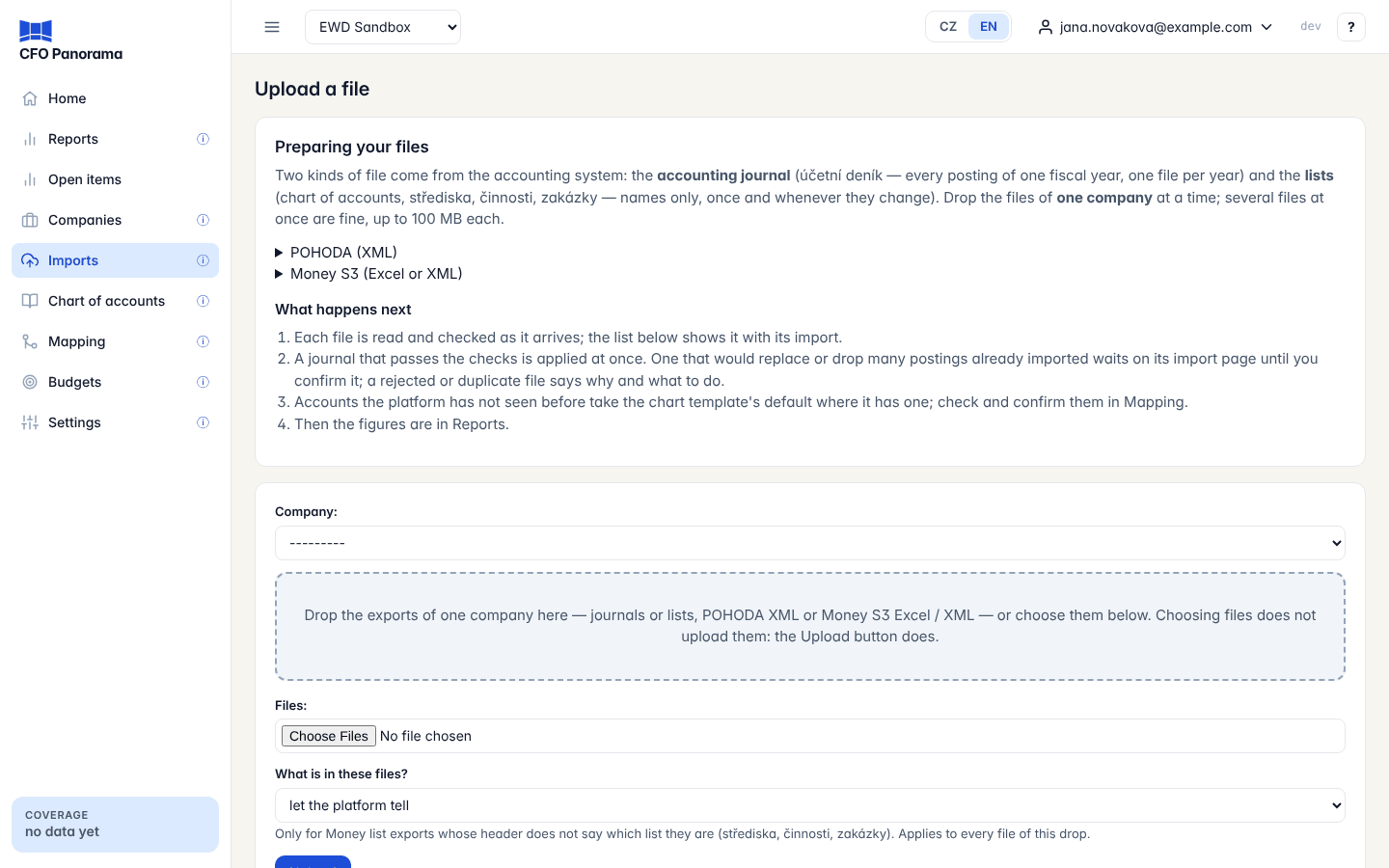
The Upload a file page brings your books into CFO Panorama: the accounting journal of each fiscal year and the lists that give the accounts, cost centres, activities and contracts their names. Open it with the Upload button on the Imports page. You export the files from POHODA or Money S3 as you always have; CFO Panorama only reads them and never writes anything back to the accounting system. Admins and editors upload; viewers do not see the page.
What to export
There are two kinds of file:
- the accounting journal (účetní deník) — every posting of one fiscal year, one file per year;
- the lists — chart of accounts, střediska (cost centres), činnosti (activities), zakázky (contracts) and, from POHODA, the document series. They hold names only; upload them once and again whenever they change.
From POHODA you can also drop a Saldo snapshot of receivables and payables here; it feeds Open items.
The Preparing your files card at the top of the page shows the steps for the systems your companies use.
| System | Journal | Lists |
|---|---|---|
| POHODA (XML) | Open Účetnictví → Účetní deník, clear any filter, right-click the list → Export do XML… → Standardní export XML POHODA, all records. | Through POHODA's XML import/export with a request file prepared for the company's IČO — Download your request file on the card. |
| Money S3 (Excel or XML) | Open Účetnictví → Účetní deník, show one fiscal year, Export do Excelu, format xlsx. The export needs all 20 columns of the journal view. | Excel exports named osnova.xlsx, strediska.xlsx, cinnosti.xlsx and zakazky.xlsx, or Money's own XML data export of the lists. |
The card also links to the full step-by-step guides with pictures.
How to upload
- Choose the Company the files belong to. Drop the files of one company at a time.
- Drag the files onto the drop zone, or choose them under Files. Several files at once are fine — journals and lists together — up to 100 MB each. A larger file refuses the whole drop before anything is stored.
- Click Upload. Choosing files does not upload them; only the button does.
You then land on the Imports page with the result of each file of the drop. See Imports.
The checks
Every file is checked as it arrives. The most common results:
| What you see | Why | What to do |
|---|---|---|
FILE_NOT_RECOGNISED | The file is not a POHODA XML or Money S3 export of the kind expected for the company's system. | Export again as shown above. |
ICO_MISMATCH | The file is for another IČO than the company you chose. If that IČO is another company of your group, the message names it. | Upload it to the right company. |
COMPANY_IDENTITY_UNVERIFIABLE | Money S3 files do not name the company, so the platform cannot check it. | Check that you chose the right company. |
MULTIPLE_FISCAL_YEARS | The file mixes fiscal years. | Export one fiscal year per file. |
HEADER_MISSING_COLUMNS | A Money journal export lacks columns. | In Money, right-click a column heading in Účetní deník, choose Všechny, export again. |
| Duplicate | Exactly this file was already imported for the company. | Nothing — nothing changed. |
LABELS_DEGRADED | The export was made on a computer whose language for non-Unicode programs is not Czech, so names lost ě, č, ř, ů. | Nothing urgent: amounts are right, the platform repairs the Czech letters it can and keeps clean names it already has. |
Two situations make a journal wait on its import page instead of being applied at once: the new file has fewer lines than the year already imported, or it would replace more than 20 postings already imported (in a small year, more than 2 % of them). An admin then confirms or discards it — usually a filter was left on in Účetní deník. See Imports.
A journal that changes months you have already locked is applied, but the locked figures stay as they were; the import page says so and the company's restatement bridge shows the difference.
Imports in the background
Where imports run in the background, Upload stores the files and the import continues on its own. The card Imports in the background shows each file with a progress bar and its state (Queued, Running, Done, Failed) and refreshes itself; you can leave the page meanwhile.
Operating statistics
For a group that keeps operating statistics (hotels, schools) the page also offers the Statistics template: choose the Company and Fiscal year and click Download statistics template. Fill in the yellow month cells and drop the workbook like any other file. Statistics are uploaded as this Excel file only — a statistics CSV is refused. Hotel groups can also upload their PMS statistics template (xlsx).
Before the first upload
Uploads open once an admin of your group has accepted the Beta terms and the data processing agreement. Until then an upload ends on Upload not possible yet with the reason, and nothing is stored. The same page appears when a new version of the terms needs accepting, or when something else the terms require is still missing — the page says what.
What happens next
Accounts the platform has not seen before take the group chart's default line where it has one; check and confirm them in Account mapping and coverage. Then the figures are in Reports. The table Uploads in this group at the bottom lists every file with a link to its import.
Did not find what you need? Write to erik@cfopanorama.com.