Excel and PDF exports
Download the report you are looking at as one Excel workbook, a single statement, or a PDF — and copy or download any working table.
On this page
Everything you see in Reports can be taken away: as one Excel workbook with every statement, as the one statement on screen, or as a PDF for printing. Every member of the group — admins, editors and viewers — can download. The files always show the selection on screen: the same companies or scope, periods, currency, basis and rounding.
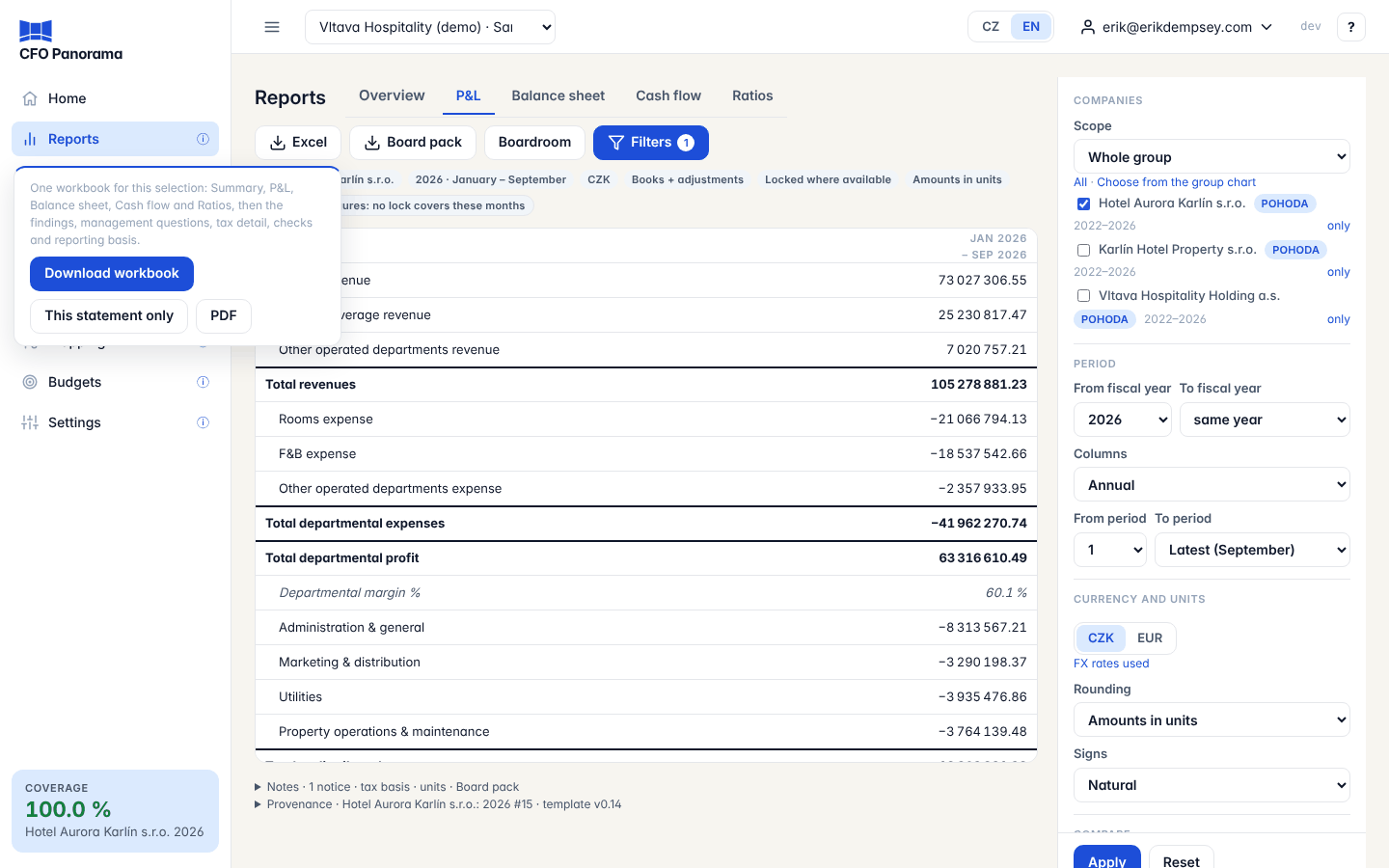
The Excel menu
Click Excel at the top right of the report. The menu offers three downloads.
| Choice | What you get |
|---|---|
| Download workbook | One .xlsx with every statement of the selection and, where it applies, the board pack's sheets. Preparing it can take up to a minute; the button shows Preparing… until the file arrives. |
| This statement only | Just the statement of the tab you are on (P&L, Balance sheet, Cash flow or Ratios), with its Provenance sheet — plus an Unmapped sheet when unmapped accounts carry amounts. |
| The statements as the screen shows them, ready to print or send. |
The Excel menu appears once the report shows figures.
What the workbook contains
The sheets come in this order:
- Summary — revenue, EBITDA and its margin, net profit, operating and free cash flow, profit distributions paid, closing cash, receivables, inventory and financial debt, read by formula from the statement sheets, followed by the main conclusions of the board pack.
- P&L, Balance Sheet, Cash Flow (the indirect method), Cash Flow (direct) and Ratios.
- When the selection is the whole group, one company, a saved scope or a holding with everything it owns, ends on a month and the board pack is part of your group's plan: Findings, Management Questions, then the sheets that fit your group — Budget vs actual, Project status, 13-week cash, USALI for a hotel group, Restaurant P&L, Outlets and Owners for a restaurant group — then Tax Detail, Debt and Checks.
- Reporting Basis — what the figures are: companies, periods, currency, language, basis, lock state, the ČNB rates used, when the figures were built and who downloaded the file.
Good to know about the sheets:
- Amounts are real numbers, not text, with the rounding applied as a number format.
- Beside a statement of one company or the group with two or more periods you get Change and Change %, and on the P&L % of revenue. These are live formulas, so you can extend the analysis in Excel; their values are stored too, so a viewer that does not recalculate still shows them.
- A statement that cannot be built for the selection still has its sheet, saying why — a tab never goes missing.
- Tax Detail shows VAT separately from the other taxes, per company and per tax type.
- In Czech (top bar CS) every sheet has a Czech name.
File names
The workbook is named after the company or group, the last month, the currency and the language, for example Vltava_Hospitality_2026-09_Financial_Reports_CZK_EN.xlsx. The name ends _Statutory when the report shows Books only, _Draft when a month in it is not locked, and _Current when you chose Current figures instead of the locked ones. The PDF has the same name with .pdf.
The PDF
The PDF holds the P&L, Balance sheet, Cash flow and Ratios exactly as the screen shows them — the same columns in the same order, the same rounding and labels — on landscape A4 pages:
- The line names repeat on every page. When a statement is wider than a page it continues on the next page with its headings again, so no figure is ever cut.
- Every page carries a footer with the group, the companies, the currency and the page number (3 / 12); pages of a demo group say Demo data.
- The last page is the Reporting Basis: group, companies, currency, basis, the lock state, when the figures were built, the ČNB average and closing rates used, and who generated the file.
Download Excel and Copy on working tables
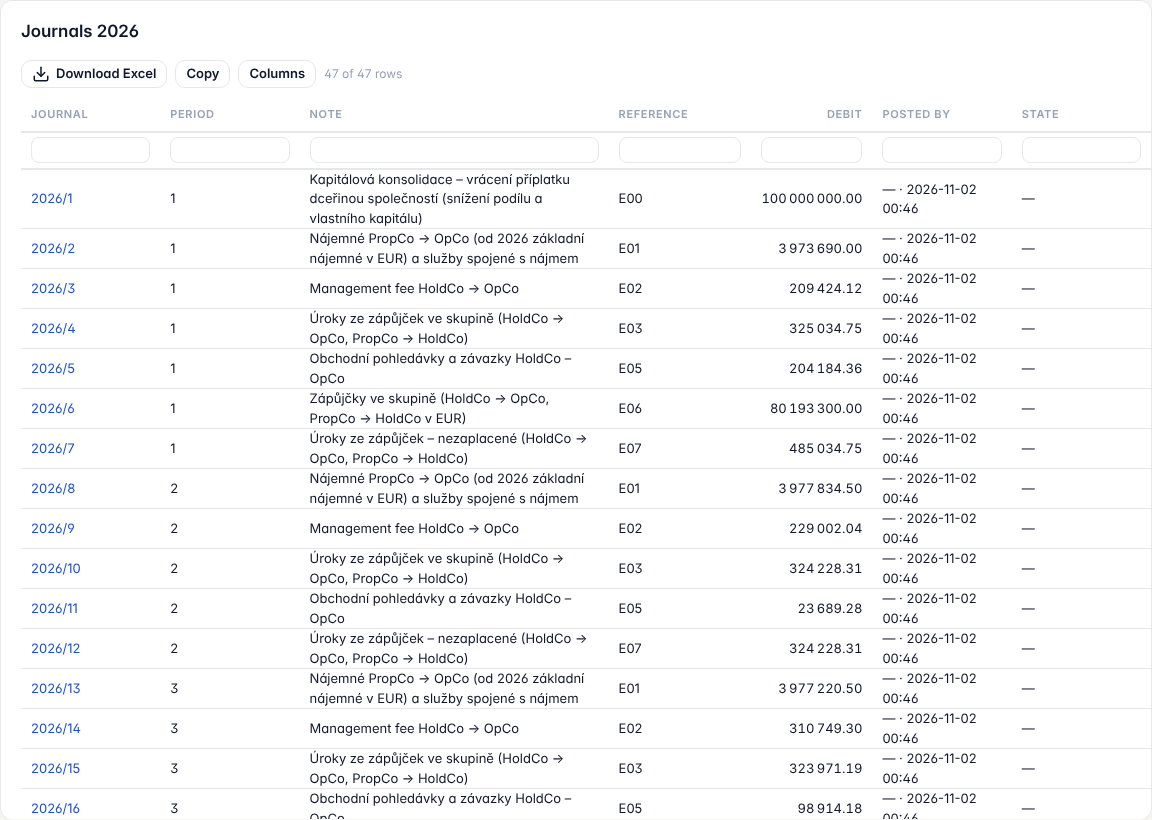
Most tables in the application that list rows — the drill-down's journal lines, Companies, Imports, mapping lists, journals and others — have a small toolbar above them:
- Download Excel saves the table as a one-sheet workbook.
- Copy puts the table on the clipboard, ready to paste into Excel or an e-mail.
- Columns hides or shows columns; your choice is remembered for that table.
Both Download Excel and Copy take the rows and columns as you see them — filtered, sorted and in the column order you set — and numbers stay numbers. Total rows are left out.
Troubleshooting
- "The export has … cells, more than the … allowed" — the selection is too large for one file. Choose fewer periods or companies, or a group column set without every company.
- No Findings or Management Questions sheet — the selection is a subset of companies ticked one by one, it ends on the opening balance, or the board pack is not part of your group's plan. The Summary sheet says which. Choose the whole group, one company or a saved scope.
- "Nothing to export yet." — the report has no figures for the selection.
Did not find what you need? Write to erik@cfopanorama.com.