Period locks
Freeze the reported figures of a fiscal year through a chosen month, per company or for the whole group, and see what changed after a lock.
On this page
A period lock says: these months are reported. When you lock a fiscal year of a company through a month, CFO Panorama takes a snapshot of that company's figures as of its latest import. From then on the reports read the locked months from the snapshot, so a board pack you sent stays the same even if the accountant later corrects an earlier month.
Who can do what
Admins lock, release and relock. Editors can open the lock pages and see the state, but cannot act. Viewers see the result in the reports: the status chip and the notes.
Where to find it
- Settings → Period locks opens Lock a fiscal year for all companies for the whole group.
- On a company's page under Companies, Period locks opens the lock page of that one company.
What you see on a company's lock page
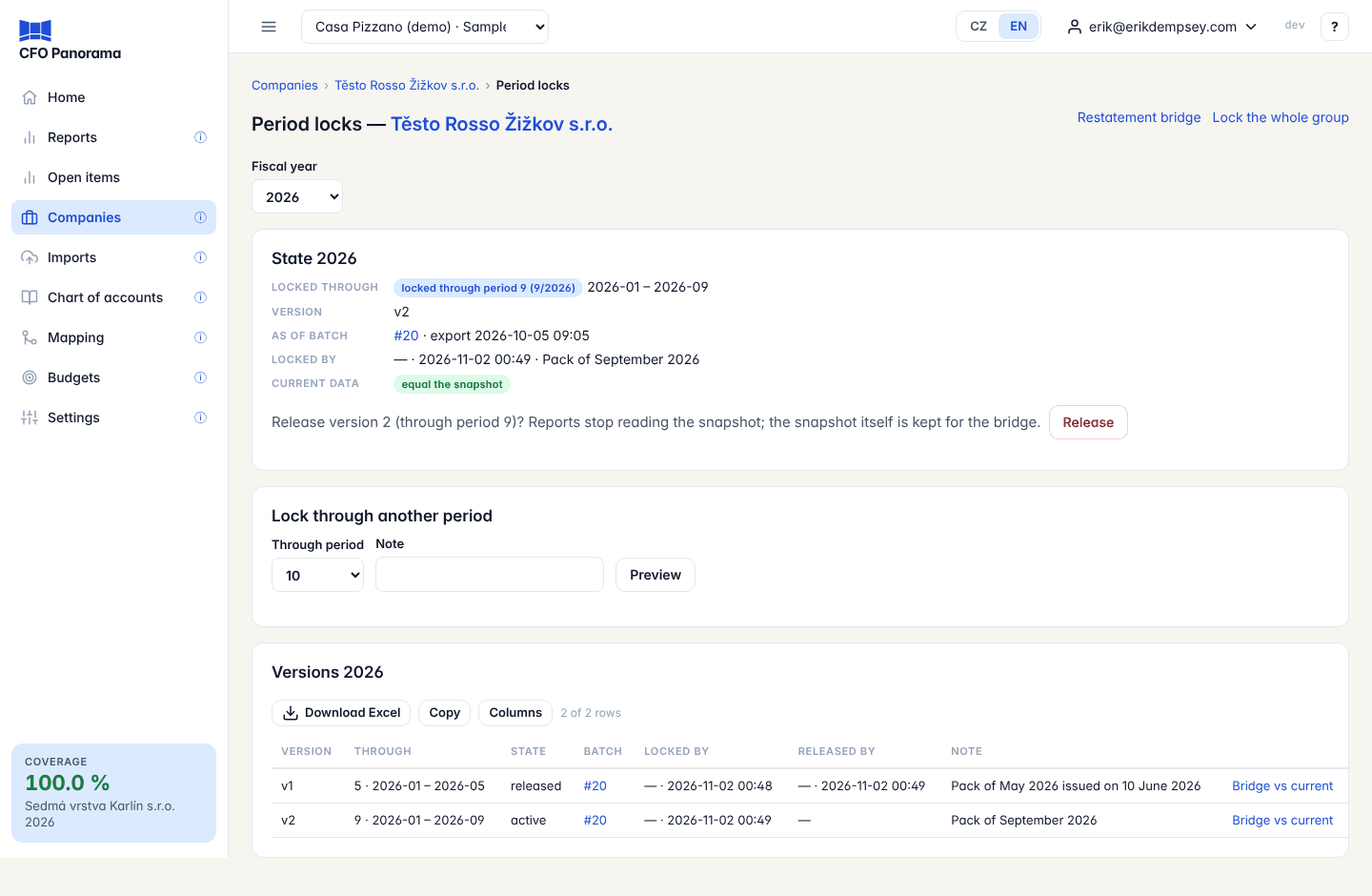
- State for the chosen Fiscal year: Locked through (for example locked through period 5 (5/2026)), the Version, the import batch it was taken As of batch, Locked by and Current data — either equal the snapshot or differ from the snapshot, with Open the bridge to see the difference.
- Lock a period (or Lock through another period when a lock exists): Through period, an optional Note and Preview.
- Versions: every lock of the year with Version, Through, State (active or released), Batch, Locked by, Released by, Note and Bridge vs current.
Step by step: lock a month
- Open the company's lock page and choose the Fiscal year.
- Choose Through period — the last month you want to freeze — and add a Note if you like (Board pack May 2026).
- Click Preview. Before anything is locked you see the Batch the lock is taken as of and its export time, the date Range, the Open PPA flags in the range (lines added to months already reported), Continuity breaks, the Previous lock and the batches imported since that lock.
- Click Lock to confirm, or Cancel.
To lock every company at once, use Lock a fiscal year for all companies: choose Fiscal year and Through period, click Preview and check the Outcome column (will lock version …, or skipped when a company has no import for the year or is already locked through that month), then click Lock. The group's elimination ledgers are locked in the same step. Releasing is always done company by company.
Versions, release and relock
- Extending a lock to a later month creates the next version (v2, v3 …) and releases the previous one.
- Release stops the reports from reading the snapshot; the snapshot itself is kept for the bridge.
- Relocking the same or an earlier month releases the active version and locks a new one. The preview says so, and the button reads Release and lock.
- No version and no snapshot is ever deleted. When a year is locked at version 2 or later, the report notes say it was restated after version 1 and link to what changed — see Restatement bridge.
When new data reaches a locked month
An import is never blocked by a lock. If the new export changes lines in a locked month, the import is applied and the batch gets the note Lines in locked periods changed (…); the lock and its snapshot are untouched — see the restatement bridge. The locked figures in the reports stay as they were. Review the change with the bridge, then decide whether to relock.
Also good to know:
- An adjustment or elimination journal dated in a locked month needs the box Post into a locked period.
- Undo latest batch and deleting a fiscal year's data are refused while the year is locked: release the lock first.
- Hotel and other statistics are not frozen by a lock.
- A mapping that was in force in a locked month cannot be deleted, only ended or remapped.
How reports show the lock
At the top of every statement a chip says what the figures are:
| Chip | Meaning |
|---|---|
| Locked snapshot v… | Every month shown is locked for every company. |
| Mixed — locked in part; live: … | Some months or companies are not locked; the chip names them. |
| Draft — live figures: no lock covers these months | Nothing shown is locked. |
| Live figures — current data, not a locked snapshot | You chose Data → Current in the report panel. |
With Data → Locked where available (the default) the reports read the snapshot; a banner appears when the current data differ from it, with Open the bridge. The notes may also say No lock covers [month]: figures are live and may change. The board pack offers Download as draft for a month that is not locked for every company.
Did not find what you need? Write to erik@cfopanorama.com.