Members and roles
Invite people by e-mail, give them the admin, editor or viewer role, change roles, resend or revoke invitations and remove members.
On this page
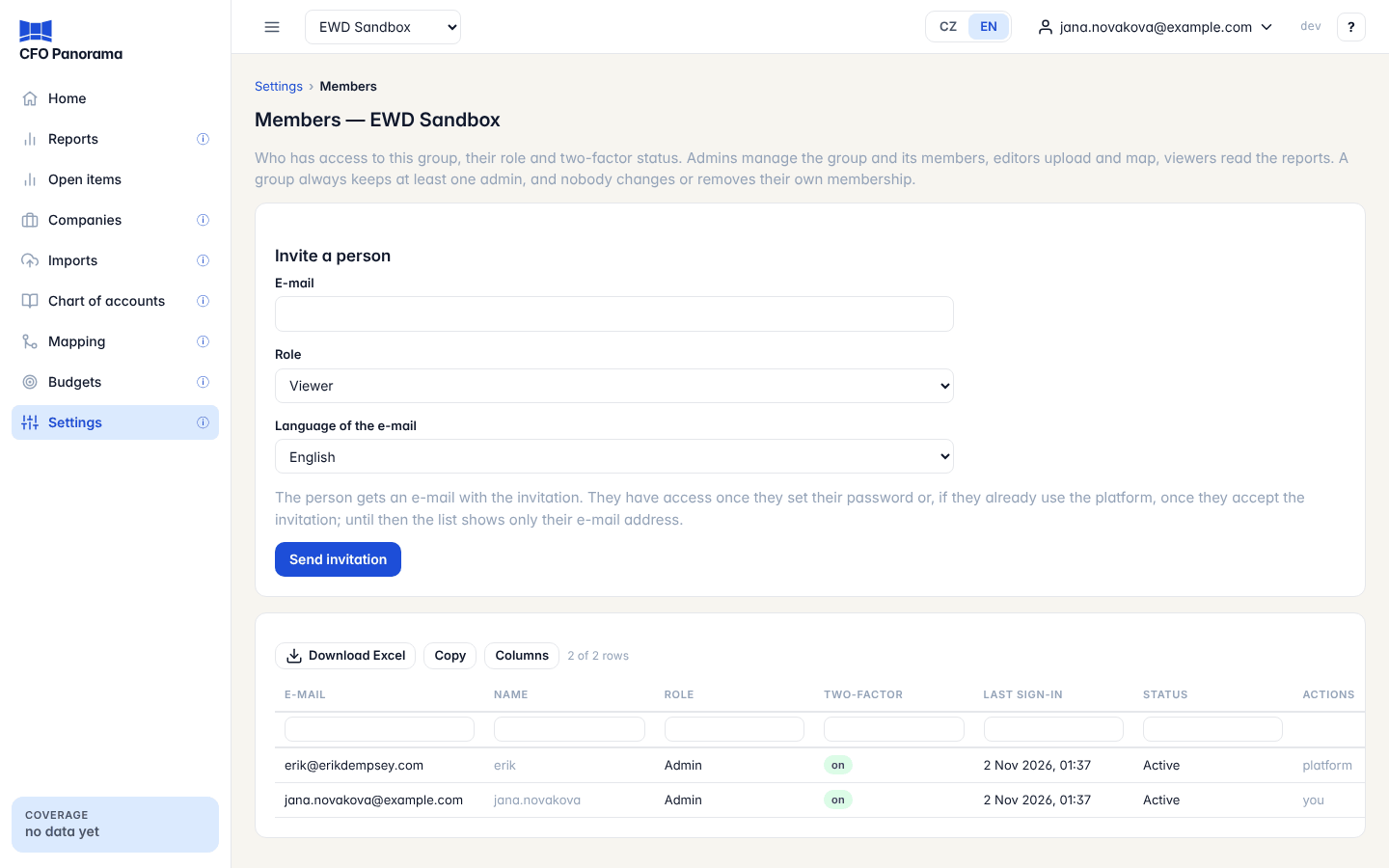
Settings → Members lists everyone who has access to your group, with their role and two-factor status. From here an admin invites new people, changes roles and removes access.
The three roles
| Role | Can do |
|---|---|
| Admin | Manage the group and its members: everything an editor can, plus settings, members, period locks and closing a month, journals posted by hand (adjustments and eliminations), budget approval and the legal documents. |
| Editor | Upload files, map accounts, maintain the group structure, post the proposed eliminations, upload budgets. |
| Viewer | Read the reports, drill down and download Excel, PDF and board packs. |
Give the accountant or controller Editor, the owners and the bank Viewer, and keep at least two admins so that one can stand in for the other.
What you see
The list shows E-mail, Name, Role, Two-factor (on or off), Last sign-in, Status (Active or Invited) and Actions. Someone who has not accepted yet shows only the e-mail address and the role. Your own row says you instead of actions.
Invite a person
- Under Invite a person, enter the E-mail, choose the Role and the Language of the e-mail.
- Click Send invitation.
- If your last authenticator code is older than 5 minutes, you are asked for a new one; then check the form and confirm again.
- The message Invitation sent to … confirms it.
What happens next depends on the person:
- New to CFO Panorama — they get an e-mail with a link, set a password and set up two-factor sign-in. They appear as Invited until then.
- Already has an account — they must accept the invitation themselves: in the user menu, My groups lists it under Open invitations with Accept and Decline. Nobody is added to a group without their consent.
Change, resend, revoke, remove
| Action | What it does |
|---|---|
| Change role | Pick the new role and Save. The message confirms … is now …. |
| Resend invitation | Sends a new invitation e-mail to someone who has not set a password yet. |
| Revoke invitation | Withdraws an open invitation; its link no longer opens the group. |
| Remove | Ends the person's access to this group. Their account stays, with any other groups they belong to. |
Change role, Remove and Revoke invitation ask you to confirm in a dialog and need an authenticator code no older than 5 minutes. Withdrawing the invitation of someone who already has an account (they have not answered it yet) needs no code.
Rules that protect the group
- A group always keeps at least one admin. You cannot remove the last admin or make them an editor or viewer: invite or promote another admin first.
- Nobody changes or removes their own membership. Another admin of the group does it. A member who wants to leave can use Leave group under My groups (not the last admin).
- An address can be invited once at a time. A second invitation is refused while the first waits for an answer.
Two-factor sign-in
Every member of a client group signs in with a password and a code from an authenticator app. A new member sets it up at the first sign-in and cannot open the group before that. The Two-factor column shows who has it on; off usually means the person has not signed in yet. See Signing in and security.
Good to know
- CFO Panorama's own platform users never appear in this list and never count as members. When they open your group, it is recorded in the Platform access log.
- In a demo group the list is shown, but invitations and changes are not possible.
- Every invitation, role change and removal is recorded in the group's audit log.
Did not find what you need? Write to erik@cfopanorama.com.