Signing in and security
How to log in with your password and an authenticator code, set up two-factor authentication, reset or change your password, and manage your groups and invitations.
On this page
You sign in to CFO Panorama with your e-mail address and password. Because the reports hold real financial data, most people also enter a six-digit code from an authenticator app on their phone. This page explains signing in, two-factor authentication, passwords and your own list of groups.
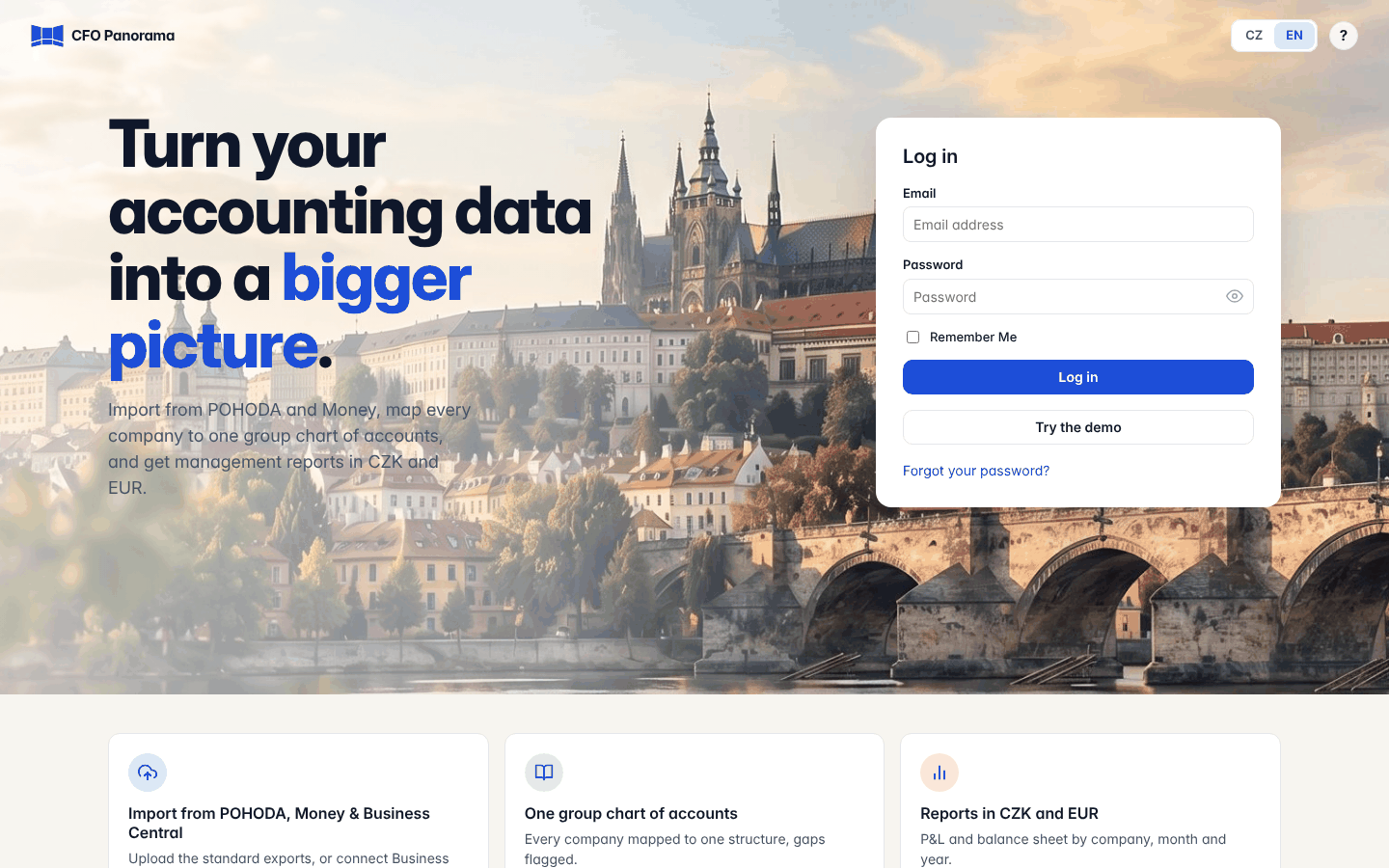
Logging in
- Open the Log in page and enter your Email and Password. Tick Remember Me on your own computer if you want to stay signed in.
- Click Log in.
- If two-factor authentication is set up for your account, the Two-Factor Authentication page asks for a code. Open your authenticator app, type the current six-digit code into Code and click Sign In. Cancel takes you back to the Log in page.
- You land on Home, or on the page a link pointed you to.
To sign out, open your user menu in the top bar and choose Log out.
Who must use two-factor authentication
| You are | Two-factor authentication |
|---|---|
| An admin or editor of any group | Required |
| A viewer of a client group (your own company's data) | Required |
| A viewer of the demo groups only | Optional |
Until a required authenticator is set up, every page leads to the set-up screen.
Setting up the authenticator
You need an authenticator app on your phone, for example Google Authenticator or Microsoft Authenticator.
- On the Activate Authenticator App page, scan the QR code with the app, or type the Authenticator secret shown below it into the app by hand.
- Type the code the app shows into Authenticator code and click Activate.
- The Recovery Codes page opens with a list of single-use codes. Click Download codes and keep the file somewhere safe, away from your phone. Each code lets you sign in once if you lose your phone.
- Click Continue to the application.
The Security page
Open it from your user menu → Security.
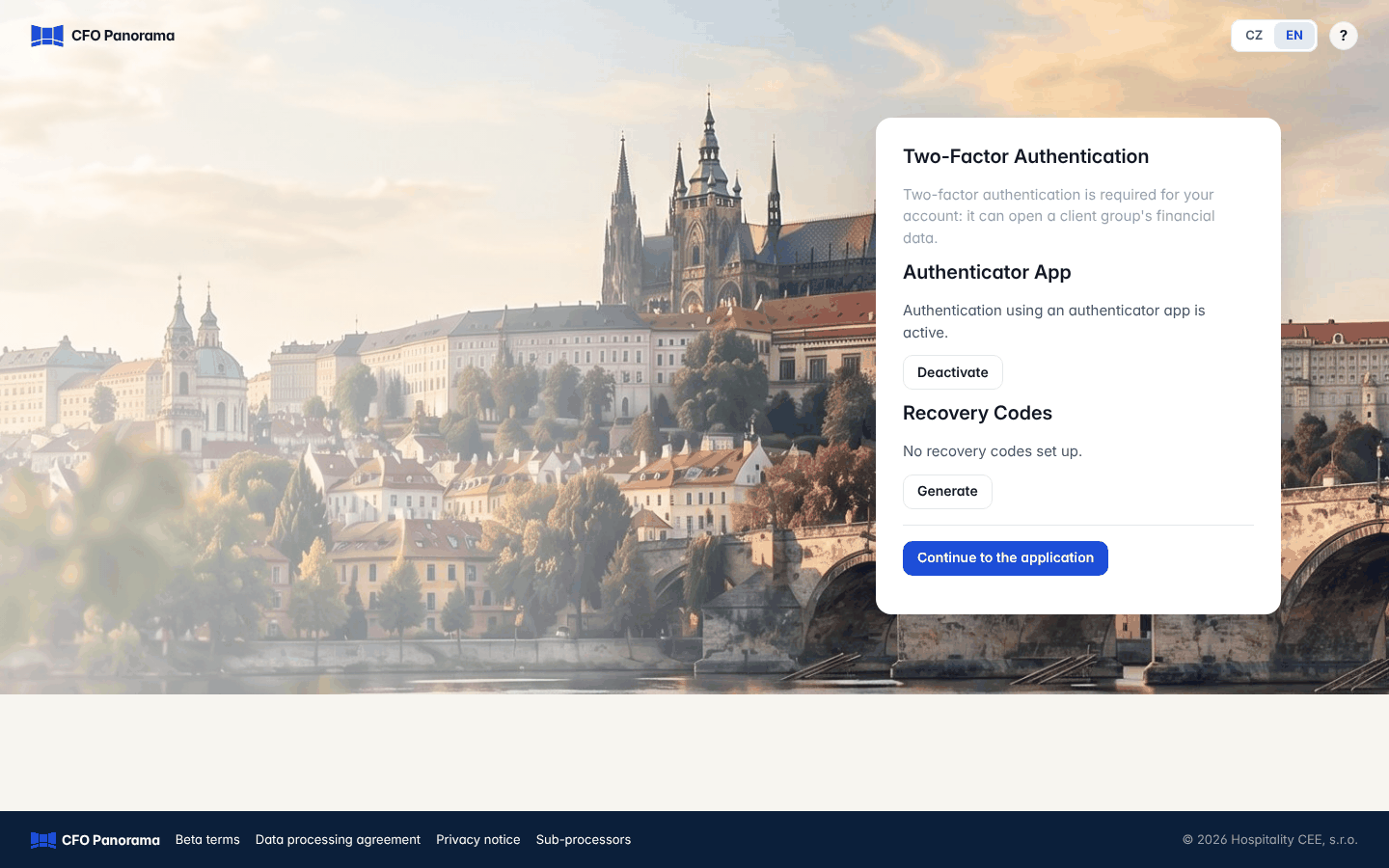
- Authenticator App shows whether the app is active. Deactivate switches it off; if your role requires two-factor authentication, you are asked to set it up again straight away.
- Recovery Codes shows how many unused codes you have left (Unused recovery codes: 8 of 10). View and Download show the remaining codes; Generate creates a new set and makes the old codes invalid.
Confirming certain actions with a fresh code
Some actions ask for your authenticator code again if your last code is older than five minutes: inviting a member, changing a role, removing a member or revoking their invitation, accepting the terms (also for further companies, or ratifying an acceptance), inviting your accountant, changing the controller details after the acceptance, and undoing an import or deleting a fiscal year's data. The Confirm Access page asks you to Enter an authenticator code; type it and click Confirm. You come back to the same form, filled in as you left it, with the message Second factor confirmed; click the button once more to finish.
Forgot your password
- On the Log in page click Forgot your password?
- Enter your Email and click Reset My Password. An e-mail with a link is sent if the address has an account.
- Open the link, enter the new password twice and click Change Password. The page names the account the link is for.
- Password saved confirms it; click Sign in.
The link works once and for 72 hours; an expired link offers Request a new link. The same page, titled Set your password, is where you choose your first password from an invitation.
Changing your password
Open your user menu → Change password. Enter the Current Password, then the New Password twice, and click Change Password. The password must have at least 8 characters, must not be entirely numeric, too common or too similar to your name or e-mail. Back to the application returns you to the page you came from.
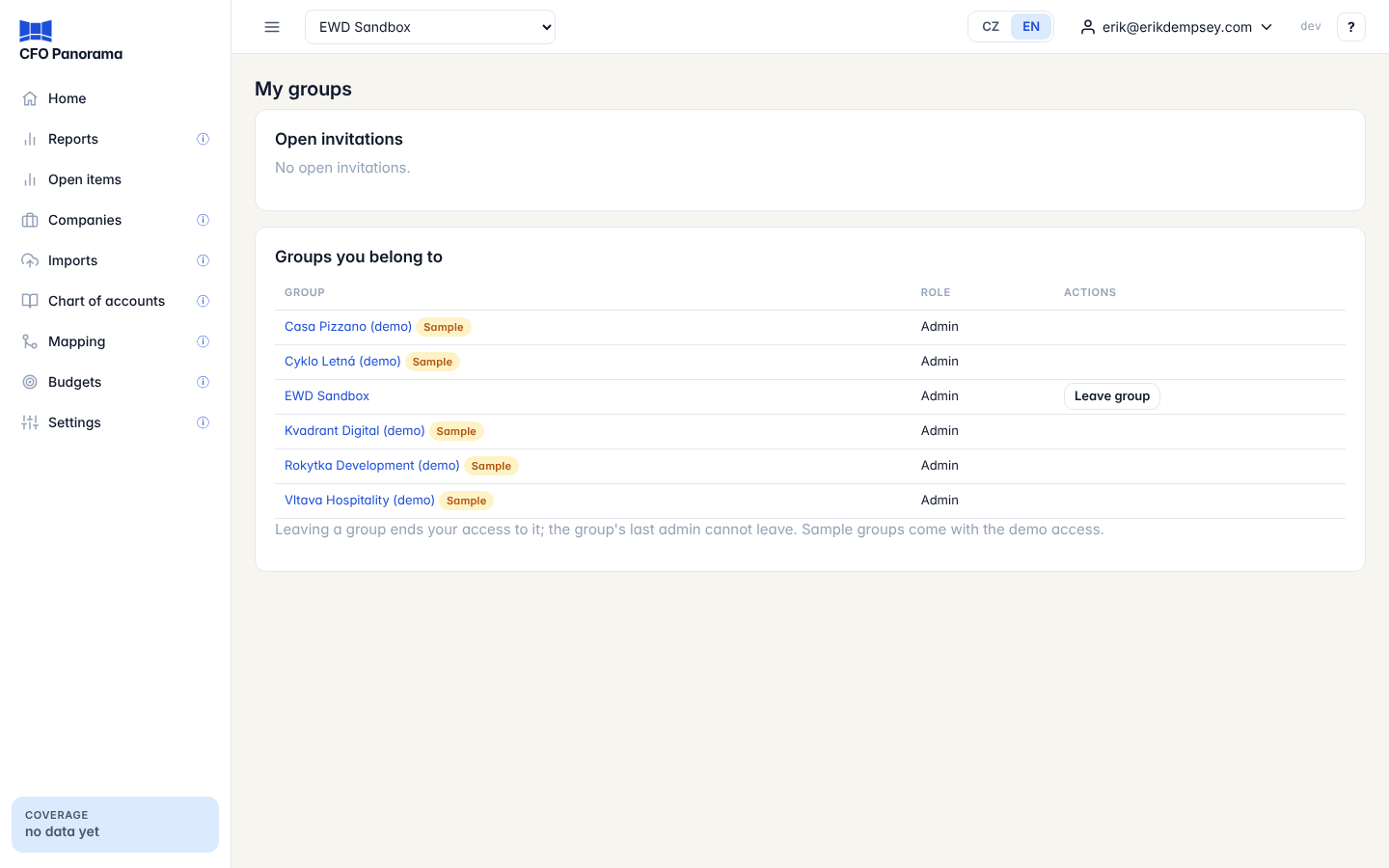
My groups
Your user menu → My groups lists everything you have access to.
- Open invitations: when someone who already has an account is invited to another group, the invitation waits here (and in a banner on every page) until you click Accept or Decline. Until you accept, the group sees only your e-mail address. If you do not know a group, decline.
- Groups you belong to: each group with your role. Click a name to open its reports. Leave group ends your access. The group's last admin cannot leave, and the demo groups come with the demo access and cannot be left one by one.
Language
The CZ / EN switch in the top bar (and on the Log in page) changes the language of the screens. Your choice is remembered in this browser.
Did not find what you need? Write to erik@cfopanorama.com.