Setting up your data
The Your data steps from the first export to the first report — accounting system, inviting your accountant, export guides for POHODA and Money S3, upload and checks, sites, mapping and the first report.
On this page
Your data walks admins and editors of a client group from the first export to the first report, once the terms are accepted. Each step can be left and resumed; the step list at the top shows what is done (✓) or skipped.
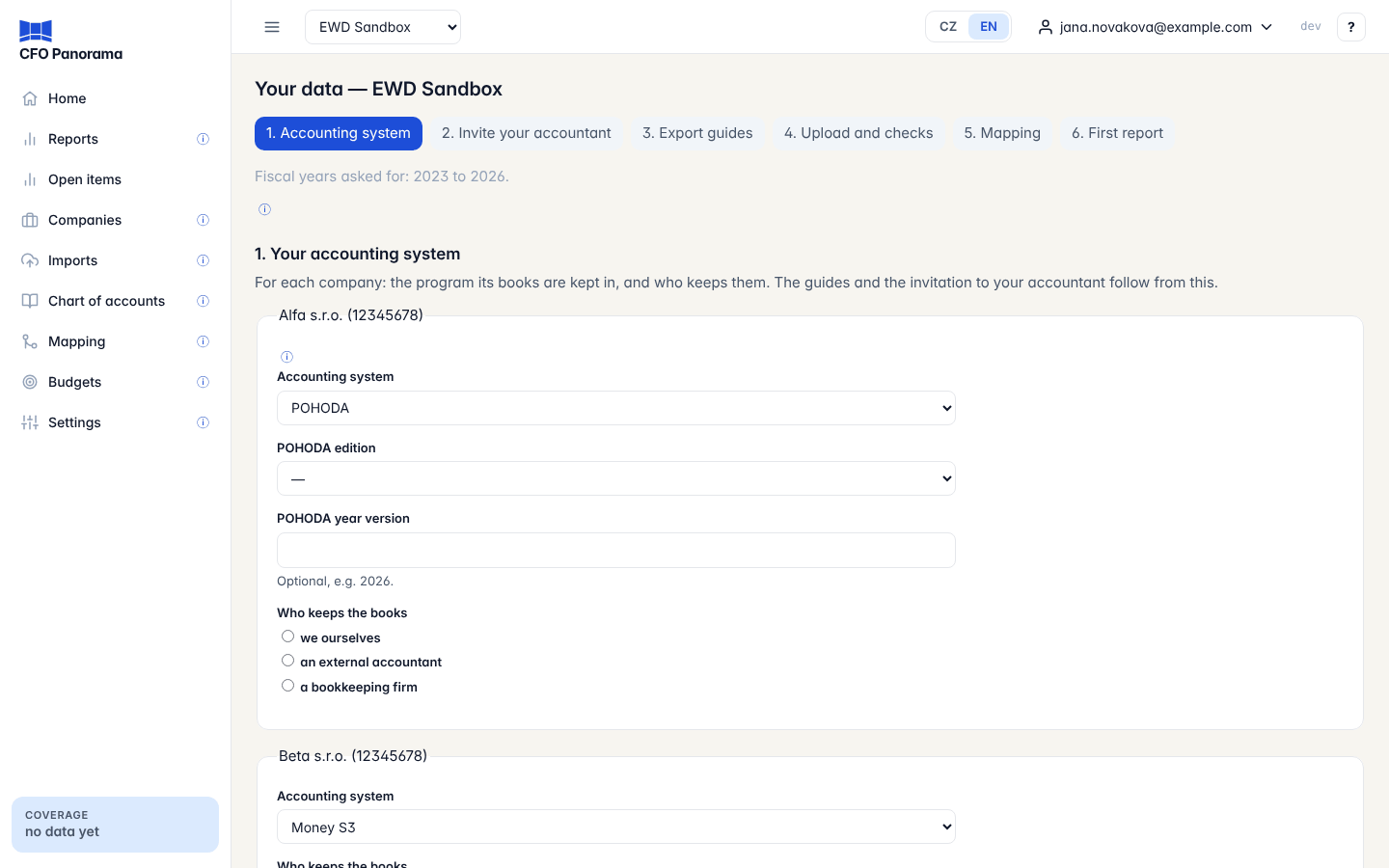
Under the step list, Fiscal years asked for shows the years the steps expect: by default the last three full fiscal years and the current one, or from the start for a company younger than five years.
1. Accounting system
For each company choose the Accounting system (POHODA, Money S3 or other) and, for POHODA, the POHODA edition and, optionally, the POHODA year version. Then choose Who keeps the books: we ourselves, an external accountant or a bookkeeping firm. Click Save and continue.
If an accountant or a bookkeeping firm keeps the books, the next step invites them; otherwise you go straight to the export guides.
2. Invite your accountant
Your accountant gets editor access and an e-mail that says what to export, for which years, and where to upload it.
- Enter the Accountant's e-mail and, optionally, the Accountant's name.
- Tick the Companies the accountant works for and choose the Language of the e-mail.
- Click Send the invitation. You may be asked for a fresh authenticator code first.
Rather send it yourself? Choose the Language and click Copy the text instead: the same instructions appear as text, with a Copy button, and nobody is invited.
Admins can change the years with First fiscal year asked for and Change the years. Skip — we export ourselves moves on without an invitation. Only admins send invitations; editors see the text option.
3. Export guides
Step-by-step guides for the person who exports the data. Each can be printed or saved as PDF from the browser.
| Guide | What it asks for |
|---|---|
| POHODA | The accounting journal as XML, one file per fiscal year, oldest first (denik_2024.xml); the lists (chart of accounts, střediska, činnosti, zakázky) in one file, made with a request file prepared for your company's IČO — Download your request file is on the guide. |
| Money S3 | The accounting journal (Účetní deník) to Excel with all 20 columns, one file per fiscal year (denik_2024.xlsx); the four lists to Excel, named osnova.xlsx, strediska.xlsx, cinnosti.xlsx and zakazky.xlsx. |
For the current year, export up to the last closed month; later, export the whole year again and the platform recognises what is new. Please do not send accounting data as an e-mail attachment. Then click I have the files — go to the upload.
4. Upload and checks
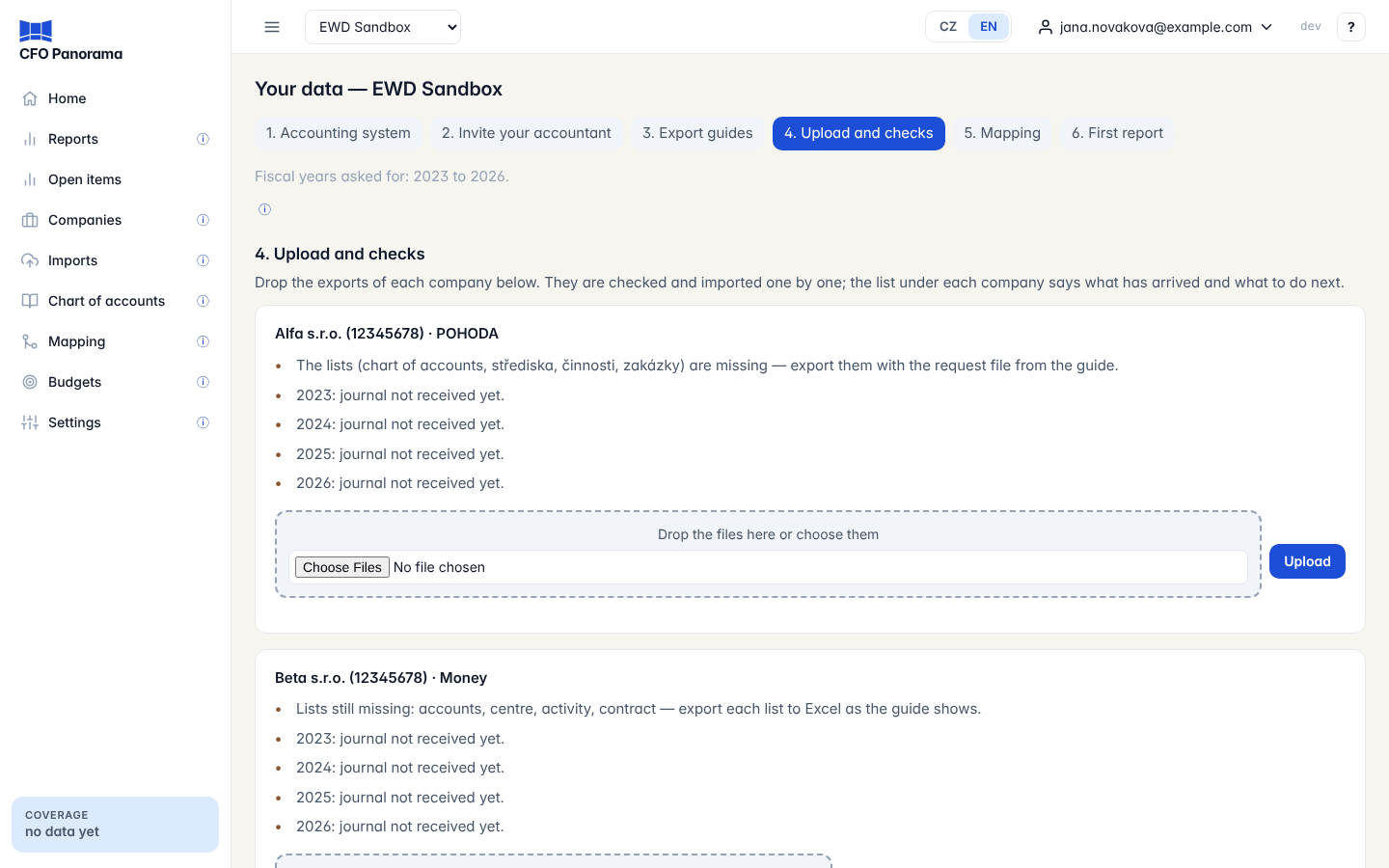
Each company has its own card. Drop its files on Drop the files here or choose them and click Upload. For Money S3 list files you can say What is in these files?, or let the platform tell from the name.
The checklist under each company says what has arrived and what to do next: Chart of accounts and lists received, 2024: journal imported, 2023 is missing — export it the same way as 2024, opening balances that differ from the prior year's closing, or a year that waits for an administrator's confirmation. Messages about the files come with What to do:. Then click Continue to the mapping.
Your sites
Shown only when a company's industry works with sites (hotels, campuses, outlets). For each středisko choose which site it is, New site, or not a site, then Save and continue. Later — in Mapping skips the step; the first report does not wait for it.
5. Mapping
Every local account goes to one line of the group chart of accounts. The table at the top shows, per company and year, how much of the posted amount is mapped; the step is done at 95 % for every year.
- Choose the Company and Fiscal year.
- The assistant lists the accounts by section (P&L — revenue, P&L — costs, Balance sheet — assets, — liabilities, — equity, No suggestion yet), each with the Suggestion, the reason and the Most frequent posting texts.
- Click Accept on a row, or Accept all sure suggestions in this section. A suggestion is sure when the account name and the posting texts point to the same line, or when the account has the standard Czech name of its synthetic account and no posting text points elsewhere. Choose another opens the full mapping page.
Ask EWD to review the mapping sends us a request; we look at your mapping and contact you. Finish later leaves the step open; the reports show anything unmapped on an Unmapped line until it is mapped. See Mapping.
6. First report and checks
For each company and year: Trial balance ties when the ledger the reports read equals the imported lines, with Mapped (amount) and Mapped (accounts). Links open the first P&L and Balance sheet — the latest full year and the current year to date. What next points to Budgets, the Board pack and Members. An admin closes the wizard with Finish: close the checklist.
The checklist card
While the steps are open, the Reports page shows the card Your data: next steps to admins and editors, with each step and how many steps are done (3 of 6 steps done.). Continue opens the next step. The card disappears once the checklist is closed or every step is done or skipped.
Did not find what you need? Write to erik@cfopanorama.com.