Mapping
The group Mapping page — how far each company is mapped, the way into Account mapping and the mapping assistant, and the optional mapping files for many accounts at once, with a preview.
On this page
Mapping tells CFO Panorama which account of the group's Global chart of accounts each local account reports on. The Mapping page in the sidebar shows the state of every company of the group at a glance. The normal way to map is in the application: each company's Account mapping page and the Mapping assistant. For many accounts or cost centres at once there are also the optional mapping files — a CSV file you or your accountant fill in in Excel. Admins and editors use the page.
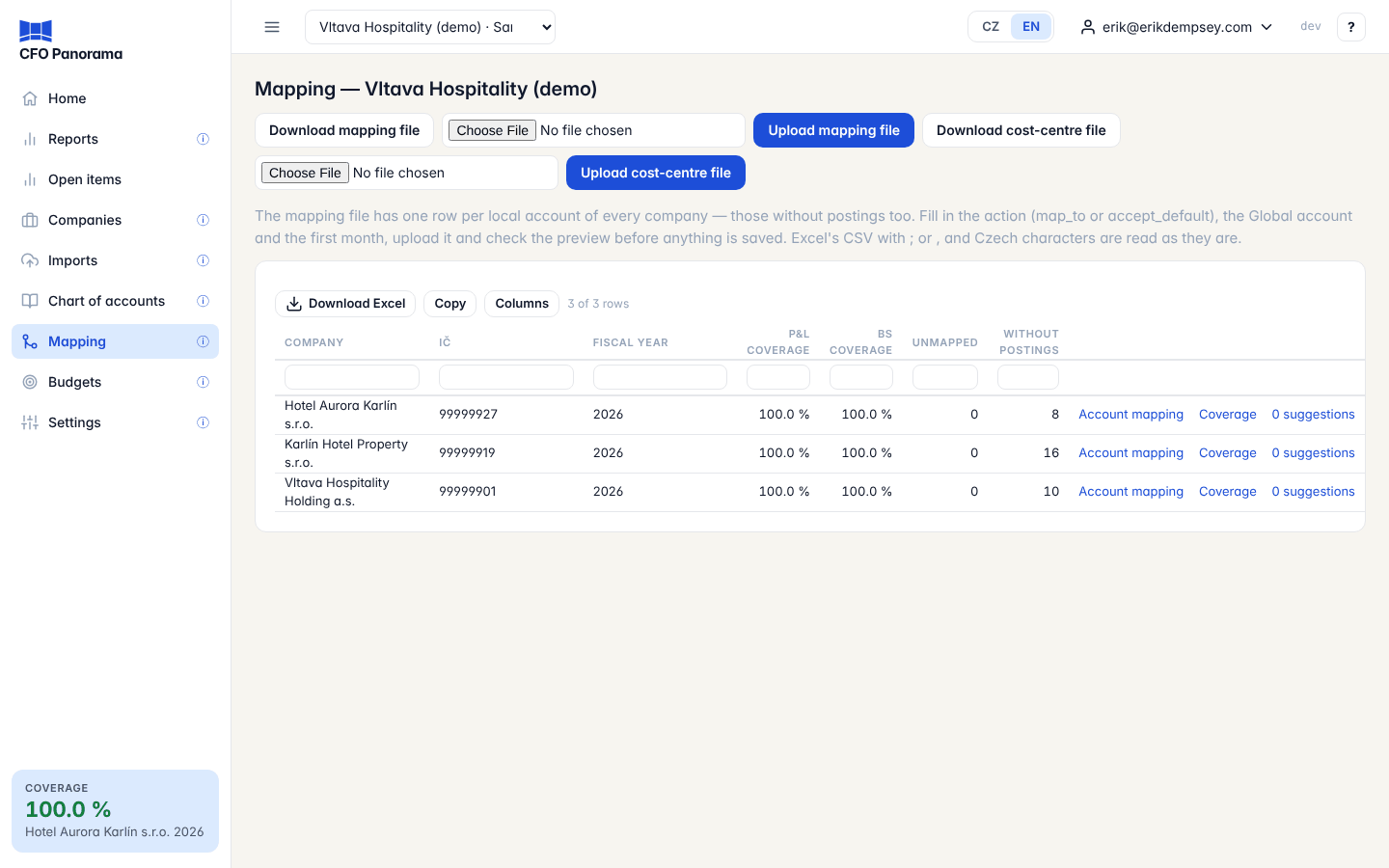
The companies table
| Column | Meaning |
|---|---|
| Company, IČ | The company. |
| Fiscal year | Its latest fiscal year with an applied journal; the figures are for that year. |
| P&L coverage | The share of the year's P&L activity on covered accounts — mapped explicitly or by a high or medium default. |
| BS coverage | The same for the balance sheet, by balance. |
| Unmapped | Accounts with postings that have neither a mapping nor a default. |
| Without postings | Accounts in the company's chart with no postings yet. They can be mapped in advance through the mapping file. |
Each row links to the company's Account mapping, its Coverage and its n suggestions — the accounts for which the platform proposes another line from the account name. See Account mapping and coverage.
The Mapping assistant button opens the data wizard's mapping step, which groups the accounts to review by statement section and accepts the sure suggestions of a section together.
Mapping many accounts with the mapping file
- Click Download mapping file. It has one row per local account of every company — those without postings too — with the columns
company_ico,local_account,local_name,action,global_account,global_name,effective_from,effective_to,note, and for informationcurrent_stateandactivity. - Open it in Excel. An account that is already mapped has one row per mapping; any other account has a row with an empty
action, the template default inglobal_accountand the account's first posting month ineffective_from. - Fill in
actionon the rows you want to change: -accept_default— confirm the default shown inglobal_account; -map_to— map to the Global account code you enter inglobal_account.effective_fromis the first month (2025-01); change it if the mapping should start later, and leaveeffective_toempty for an open-ended mapping. Rows with an emptyactionare skipped. - Save it as CSV — Excel's CSV with
;or,and Czech characters are read as they are; at most 2 MB and 20,000 rows — and choose the file under Upload mapping file. - Check the Mapping file preview. Nothing is saved yet.
- Click Apply n changes. The rows are checked again against the mappings as they are now and saved in one go; refused rows are left out.
The same buttons on a company's Account mapping page download and upload the file of that company only.
The preview
The counts at the top give each outcome; the table lists every row with its Outcome, Reason and the Locked periods it touches.
| Outcome | Meaning |
|---|---|
| create | A new mapping. |
| remap | The account moves to another Global account from the month given; the mapping before it ends the month before. (Cost-centre file: the středisko gets another value.) |
| set | (Cost-centre file) A dimension value is assigned. |
| unchanged | The row matches what is already saved. |
| skipped | No action filled in. |
| refused | The row cannot be saved; the reason says why — an unknown local or Global account, a default that differs from the one in the file, a bad month or IČO, or a range that conflicts with an existing mapping. |
Download the refused rows gives those rows back as a CSV with their reason, to correct and upload again. Cancel leaves everything as it was.
Effective dating
Every mapping has a first month and, optionally, a last month. A mapping from 2022-01 applies to every report from January 2022; a remap from 2025-01 changes the presentation from that month on and leaves the earlier months as they were. A chain in one file — account A from 2022-01, account B from 2024-01 — is read as a create and a remap.
The cost-centre file
Download cost-centre file has one row per středisko of every company, with a column per Global dimension of the group (for example department, hotel, business_unit) holding the value code it maps to. Fill in the codes, then Upload cost-centre file and apply it from the preview in the same way. See Dimensions.
Did not find what you need? Write to erik@cfopanorama.com.