Budgets
Download a budget template, upload it as a draft, have an admin approve it, and compare actuals with the approved budget in reports and the board pack.
On this page
The Budgets page holds your budgets: one version per company (and per hotel, for hotel companies) and fiscal year. You fill in a budget on a template in Excel, upload it as a draft, and an admin approves it. The approved version becomes the Budget column of the reports and the budget slides of the board pack.
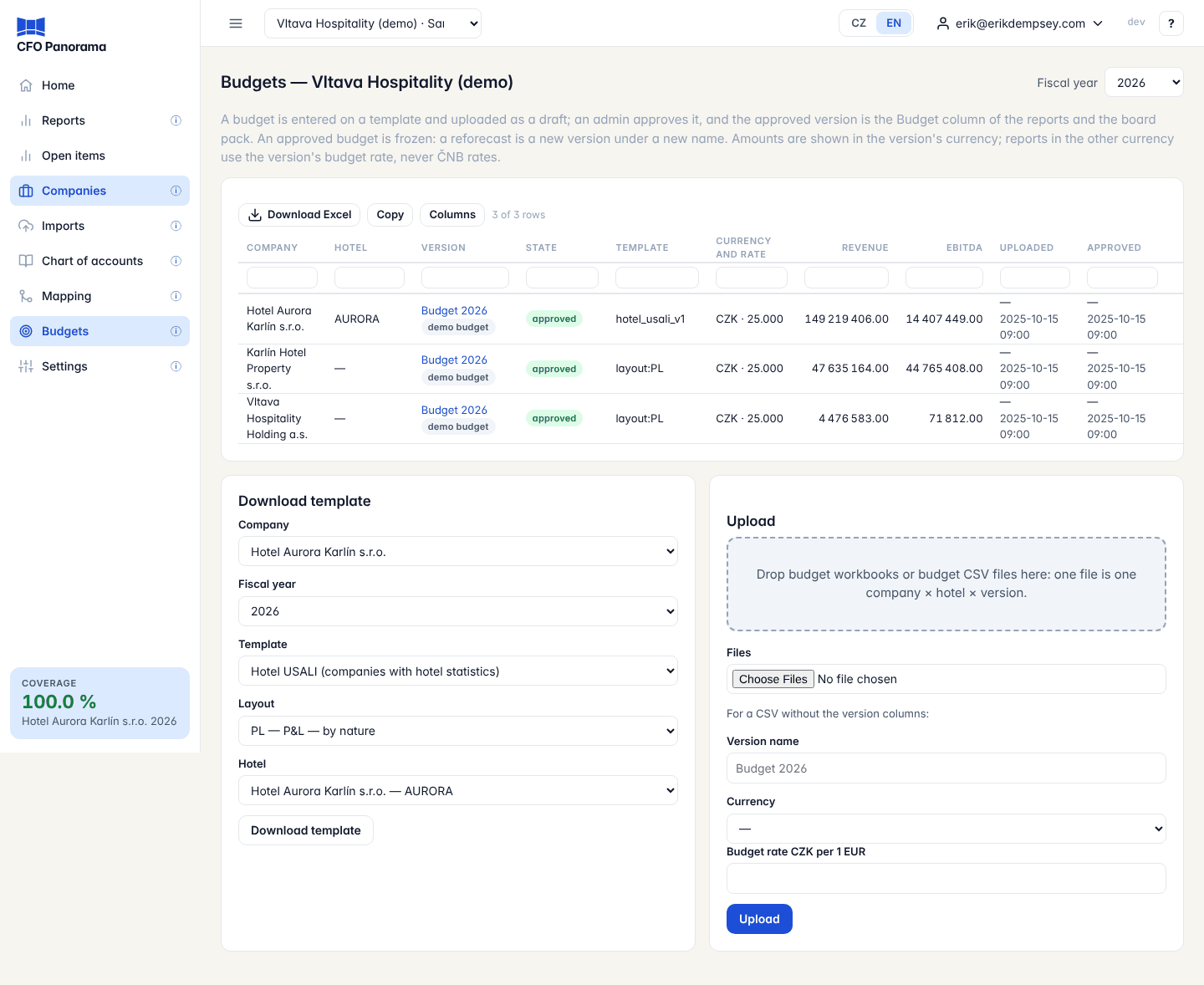
Admins and editors download templates and upload budgets; only admins Approve a draft or Delete draft. Viewers do not see the page; they see the approved budget in the reports and the board pack.
How a budget version moves
- Draft — every upload is stored as a draft. Uploading again under the same name (same company, hotel and fiscal year) replaces the draft.
- Approved — an admin clicks Approve. The version is now the budget of that company for the year, and it is frozen: nobody can change or delete it.
- Superseded — when a later version of the same company and year is approved, the earlier approved one becomes superseded. It stays readable and can still be chosen by name in the reports.
A reforecast is therefore a new version under a new name, for example Reforecast Q2 2026 after Budget 2026.
What you see
Choose the Fiscal year at the top. The table lists every version of that year: Company, Hotel, Version (click the name to open it), State, Template, Currency and rate, Revenue, EBITDA, Uploaded and Approved (who and when). Next year is always offered, so you can prepare a budget before it has any books.
The version page shows the months, the rows, the totals (revenue, GOP for hotels, EBITDA), the file and any issues found on upload, with Approve and Delete draft for admins.
Step by step
- In Download template, choose the Company, the Fiscal year and the Template: - Hotel USALI (companies with hotel statistics) — the hotel budget workbook. The setup block is pre-filled (company, IČO, hotel, fiscal year, currency, rooms in the hotel) and a Last year sheet shows last year's actuals for reference. - Report layout (any company) — a workbook generated from a P&L Layout: one row per line of that P&L, with last year's actual per month in grey columns beside your input.
- Click Download template and fill in the yellow cells month by month. Amounts are without VAT. In the layout workbook income is positive and costs are negative, as the reports show them. Do not change codes or rows.
- Back on the page, drop the file on Upload (or choose it under Files) and click Upload. One file is one company × hotel × version; you can upload several at once.
- A stored file opens its version page: Budget “…” stored as a draft. A refused file lists what to fix under Not stored — fix the file and upload it again.
- An admin checks the draft and clicks Approve.
Issues on upload
Some issues stop the budget from being stored; others are only shown. The most common ones:
| Message (shortened) | What to do |
|---|---|
| The file is not a budget workbook… | Download the template again and fill that one in. |
| No company of this group has the IČO … / The first month of the fiscal year … differs … | Use a template downloaded for this company. |
| “…” is not a number. | Remove text from the amount cells. |
| Check … fails in … | A hotel check failed, for example rooms sold above rooms available. Correct that month. |
| An approved budget named “…” exists | Upload under a new name. |
| Account … is no longer on this line of the layout | The chart changed after the download: download the template again. |
| … is outside half to twice last year's … | Not an error: occupancy, ADR, GOP margin or payroll looks unusual. Check it. |
Budgets in reports and the board pack
- In Reports, on a P&L, tick Compare with budget in the panel. Each period then shows Actual, Budget and Δ budget. It works for one fiscal year at a time.
- Budget version picks the version: Approved budget by default, or another by name. Admins and editors also see drafts, labelled (draft).
- Δ budget = actual − budget. With Signs set to Positive the column is called Var (+ favourable).
- A company with books but no approved budget leaves the total budget empty: No approved budget for FY….
- The board pack adds Results against budget, Results against budget by company, EBITDA YTD: budget to actual and, for hotels, the hotel P&L against budget. It uses approved budgets only, never drafts.
The budget rate
Every budget has its own budget rate (CZK per 1 EUR). A report in the other currency translates the budget at this rate, never at ČNB rates, so the budget does not move when exchange rates move. The template suggests last year's average ČNB rate; you can change it before you upload.
Did not find what you need? Write to erik@cfopanorama.com.