Industries
How to choose your group's primary industry and each company's industry, what an industry switches on — the main P&L, statistics, board-pack sections, budget template — and why a change never deletes anything.
On this page
Each company has an industry, and the group has a primary industry. The industry decides the main P&L, the operating statistics and the templates the group is offered. You choose it during the onboarding and can change it later; a change never deletes data.
The industries offered
| Industry | What it brings |
|---|---|
| Hotels and accommodation | The USALI hotel P&L, occupancy, ADR and RevPAR from the hotel statistics, the hotel budget workbook |
| Restaurants | Operating statistics (covers, spend per guest) and the restaurant P&L where the group has one |
| Real estate development | The project report: status, investment and funding of each project |
| Schools and education | The school P&L, pupils, classes and staff from the campus statistics |
| Holding company | Holds the group's other companies; the core statements |
| Property company (rental) | Owns and lets property; the core statements |
| General / services / trade | The core statements, ratios, budgets and the board pack |
Every group gets the core statements, the ratios, budgets and the board pack, whatever its industry.
Each company's industry
Set it in the Industry field of each company — in the onboarding's Companies step, or later under Settings → Companies. When you load a company from ARES, the industry is suggested from its CZ-NACE codes (Suggested from the commercial register — please confirm). Check it and save.
The group's primary industry
The primary industry sets the defaults: the main P&L, the board pack's sections and the budget template offered first. Until an admin confirms one, it follows the companies' industries; a holding or property company does not count towards it.
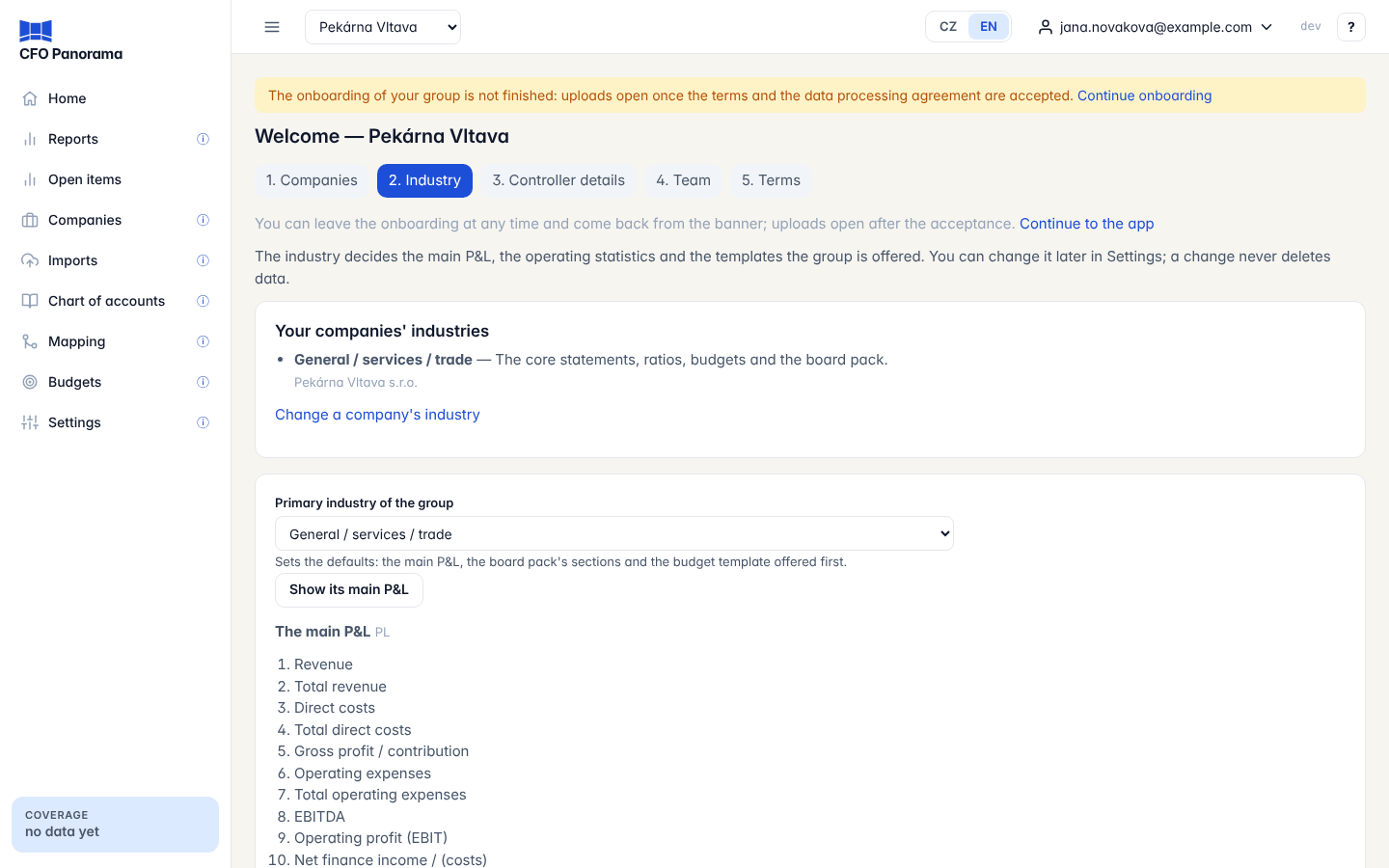
In the onboarding (step 2. Industry):
- Check Your companies' industries. Change a company's industry goes back to the Companies step.
- Choose the Primary industry of the group. Show its main P&L previews the lines of the P&L layout it brings.
- Click Confirm and continue.
Later, under Settings → Group profile, in the Industry card:
- Choose the Primary industry and click Save.
- If the change adds an industry template, a note says what it adds; click Confirm to apply it.
The card also lists each company with its industry.
What an industry switches on
- The industry template. Hotels and schools come with their own template: extra accounts, an operating P&L (USALI for hotels, the school P&L for schools) and a catalogue of statistics. Confirming adds it once: The Hospitality industry template was added to the group. Settings → Group profile shows it as Industry template.
- The industry P&L. A restaurant group with its own restaurant P&L gets it marked as the group's industry P&L, so it is what the board pack's restaurant pages read.
- Statistics. Hotels, restaurants and schools can upload operating statistics (rooms, guests, covers, pupils), which the KPIs read.
- Sites. For hotels and schools, the Your data steps ask which střediska are your hotels or campuses.
- The board pack and budgets. A hotel group gets the hotel operations pages in the board pack and the hotel budget workbook first on Budgets.
A change never deletes anything
Changing an industry moves only the defaults. A template once added stays with its accounts, layouts, mappings and statistics; nothing that exists is changed or deleted.
Only admins change the primary industry. In a demo group the industry is fixed.
Did not find what you need? Write to erik@cfopanorama.com.