Drill-down
Click any figure in a report to see the group accounts, the local accounts and the journal lines behind it — including the journals behind eliminations — and download them to Excel.
On this page
Every underlined figure in a report opens its drill-down: the group accounts, the local accounts and the journal lines it is made of, so you can check any number down to the posting your accountant made. Empty and zero cells are not links. Every member of the group can drill down.
Step by step
- On the Reports page, click a figure in the statement.
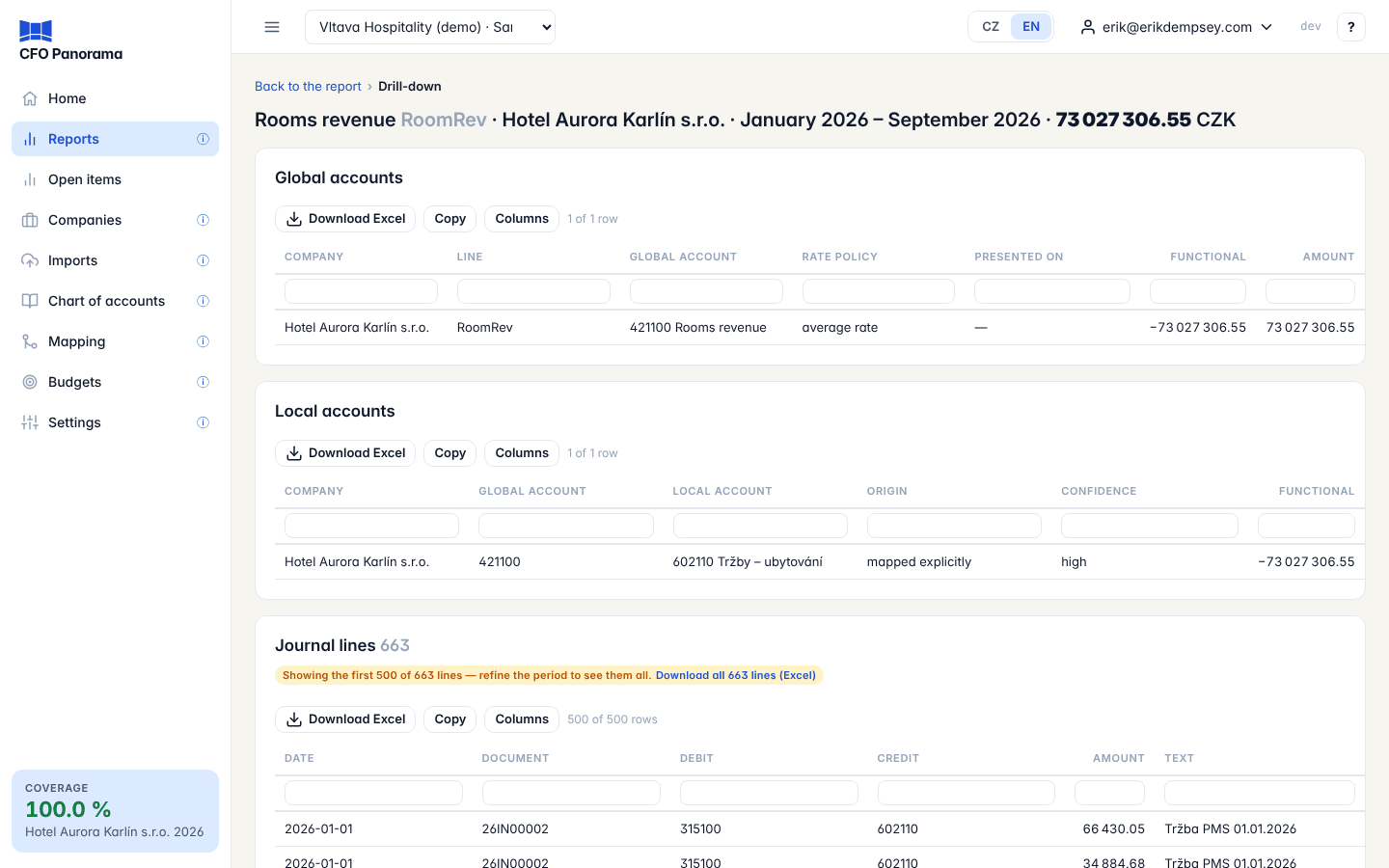
- The drill-down opens. Its title names the line (with its code), the column and the amount, for example Rooms revenue RoomRev · Hotel Aurora Karlín s.r.o. · January 2026 – September 2026 · 73 027 306.55 CZK.
- Read the tables from the top down (see below).
- Click Back to the report at the top left to return to the same report with the same filters.
What you see
| Table | What it shows |
|---|---|
| Global accounts | The accounts of the group chart behind the figure, per company: the line, the account, its Rate policy (for example average rate), Presented on (the line a balance was moved to when it is on the opposite side, for example an overdrawn bank account on short-term borrowings), Functional (in the company's own currency) and Amount (in the report's currency). |
| Local accounts | The company's own accounts behind each group account, with their Origin (mapped explicitly, template default or unmapped) and Confidence. |
| Journals | Only when adjustments are involved: the adjustment or elimination journals behind the figure, with their period, note and lines; a reversal or a journal in a locked period is marked. |
| Journal lines | The postings themselves: date, document, debit and credit account, amount and posting text. |
The journal-lines table shows the first 500 lines. When there are more, a note above it offers Download all … lines (Excel).
Eliminations
A figure in the Eliminations column has no postings of the companies themselves: it is made of elimination journals posted in CFO Panorama. Its drill-down lists those Journals — for example a monthly rent charged by the property company to the operating company, with each journal line's text and its debit or credit amount — so you can see exactly what was taken out and why.
Other kinds of figures
- Budget figures open the budget versions (name, state, file, who approved it) and the budget rows behind the cell.
- Statistics (rooms sold, covers and so on) open the statistics rows and the upload batch they came from.
- On the cash flow, most lines open the group accounts with their Cash-flow class (in place of the rate policy), the local accounts and the journal lines. Net profit after tax opens the P&L's drill-down; Cash at beginning and Cash at end open the cash accounts at that date (an overdrawn account is marked overdrawn); the exchange-rate effect opens its calculation per cash account; the reconciliation line shows what it is made of; the non-cash memo lines open their journals; and Difference to the indirect method shows where the two methods differ. The net-debt reconciliation lines do not drill down.
- Ratios do not drill down; click the ratio's name instead to see its formula and figures. See Ratios.
Download to Excel
Each table has its own toolbar:
- Download Excel — the table as shown (the rows and columns you see), as an Excel file.
- Copy — the same, to paste into a spreadsheet or an e-mail.
- Columns — hide or show columns; your choice is remembered for that table.
Under each heading row is a filter row: type to keep only the matching rows; in amount columns you can type >1000, <0 or =0. Click a heading to sort, drag a heading's edge to widen a column.
Download all … lines (Excel), offered when a figure has more than 500 journal lines, downloads every journal line of the figure.
Good to know
- A drill-down is read-only: nothing you do here changes the books or the report.
- A drill-down always shows amounts, even if the report was shown as percentages or an index.
- The link of a drill-down works only within your own group.
Troubleshooting
- "This drill contains … journal lines, more than the … allowed; narrow the period." Choose a shorter period in the report and drill again.
- "No journal lines in this period." The figure comes from opening balances or from adjustment journals only.
- The figure looks wrong. See Investigating an unexpected figure.
Did not find what you need? Write to erik@cfopanorama.com.