Imports
Every file uploaded to the group and what became of it — journals, lists, statistics and Saldo snapshots — with the checks, the changes against the previous version and the admin's confirm, discard and undo.
On this page
The Imports page lists every file uploaded to the group and what became of it. Each file becomes one import (a batch) with its own page: the checks, what changed against the version before, and — for the admin — the actions that confirm, discard or take an import back. Admins and editors use the page; viewers do not see it.
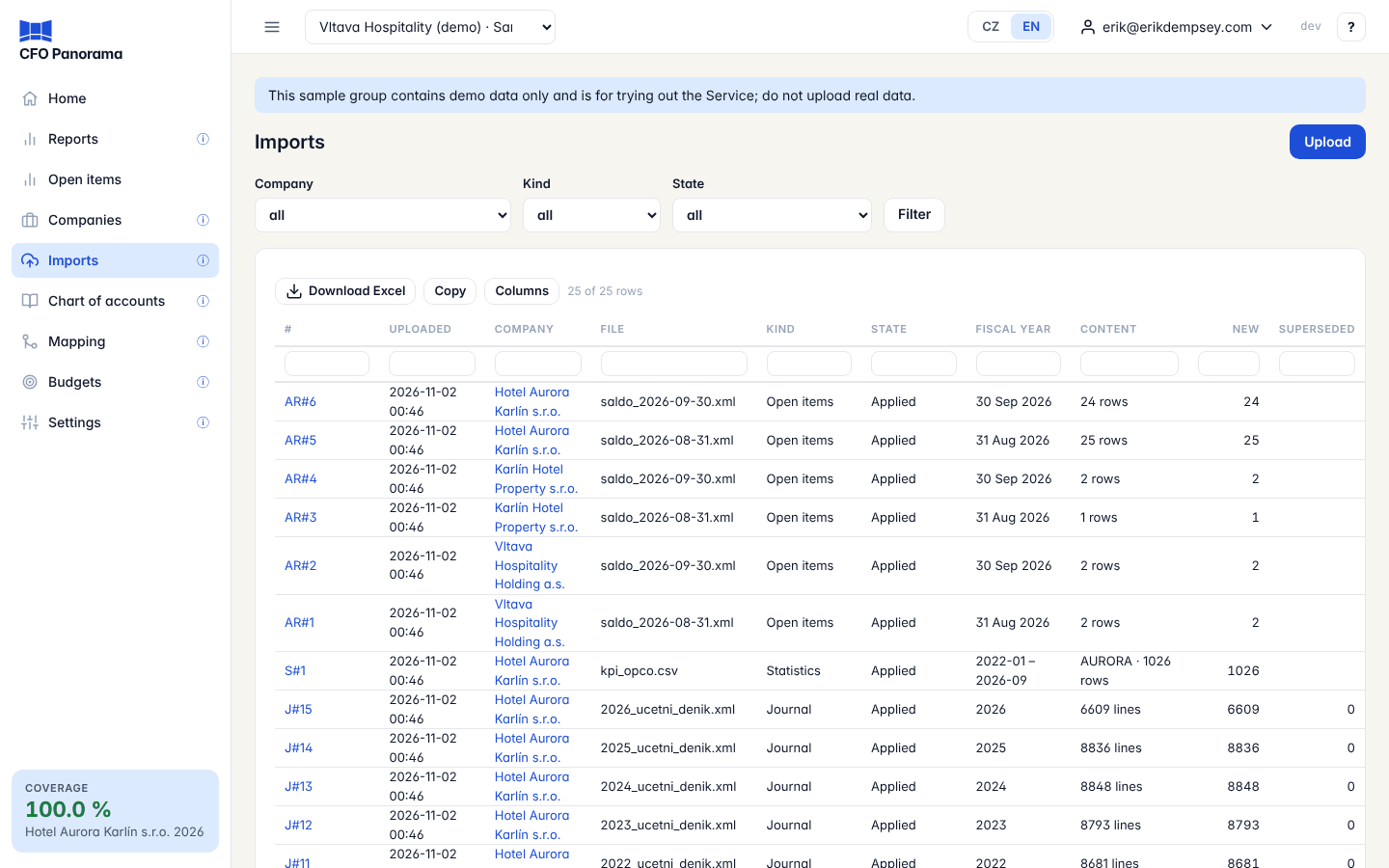
The list
Filter by Company, Kind and State and click Filter. Each row shows:
| Column | Meaning |
|---|---|
| # | The import's number: J# a journal, M# master data (lists), S# statistics, AR# a Saldo snapshot for Open items. Click it to open the import. |
| Uploaded | When the file arrived (Prague time). |
| Company, File | Where the file was uploaded and its name. |
| Kind | Journal, Master data, Statistics or Open items. |
| State | Applied, Pending confirmation, Duplicate, Rejected or Discarded. |
| Fiscal year | The year of a journal; the months of a statistics file; the date of a Saldo snapshot. |
| Content | Lines of a journal, the lists and their item counts, the hotels and rows of a statistics file, or the rows of a Saldo snapshot. |
| New, Superseded | Lines added and lines replaced against the version before. |
Right after an upload the page shows This drop — only the files you just uploaded, each with a Details link. The Upload button leads to the Upload page.
A journal import
The page of a journal import (J#) shows:
- Company, File (size and a short SHA-256 fingerprint), Uploaded (when and by whom), Fiscal year with its dates, Export timestamp and Labels — clean, or degraded (lost diacritics) when the export lost the Czech letters. For POHODA it also shows the IČO in the file and the POHODA release; for Money, the date format and the header.
- Issues, grouped by severity, each with its code and a What to do: sentence.
- Counts — the lines of the file: all lines, opening, closing and normal entries, lines in foreign currency, documents, lines with a cost centre, activity or contract, lines with a partner.
- Diff — the comparison with the year already imported: new lines, unchanged, unchanged lines whose reference or details were updated, superseded (replaced or no longer in the export), reinstated, and lines added to months already reported (prior-period adjustments).
- Superseded lines (first 50) and Prior-period adjustments, when there are any.
A newer export of the same year replaces the old one line by line, with the history kept — the normal way to bring in new months.
Confirm or discard a held journal
A journal waits as Pending confirmation when it has fewer lines than the year already imported (LINE_COUNT_DROP), or would replace more than 20 of its lines — in a small year, more than 2 % of them (SUPERSEDE_ABOVE_THRESHOLD). Usually a filter was left on in the accounting system, or the wrong year or company was exported.
- Admins see Confirm and Discard. Confirm applies the batch; Discard leaves everything as it was.
- Editors see Waiting for an admin of this client group to confirm or discard this batch.
If another import of the same year arrived in the meantime, Confirm refuses with The fiscal year changed since this batch was computed — discard it and upload the file again.
Undo the latest import
An admin of a client group can take back the latest applied journal of a fiscal year: its lines are removed, the batch before it is current again and its stored file is deleted. Open the import and click Undo latest batch in the Danger zone.
The confirmation page lists what will happen: the lines removed, the lines current again, the batch that becomes current, the files deleted, and the adjustment and elimination journals that are kept. Type the company's IČO (its name, for a company without one) and click Delete. If your second-factor code is older than five minutes, the platform asks for a new one first and then shows the page again to confirm.
Delete a fiscal year
To remove every imported journal of a year, open the company's page and use Delete this fiscal year's data in its Danger zone: the lines, the monthly figures and the stored files go. The same confirmation applies. Adjustment and elimination journals stay — they are separate postings.
Master data (lists)
A list import (M#) shows Lists in the file with the item counts, Changes per list (New, Renamed, Unchanged, Deactivated, Reactivated) and Ignored lists. Lists are never held for confirmation. An item missing from a new export is deactivated, never deleted; one the journal still uses is kept.
Statistics
A statistics import (S#) shows the Format, the Months, the hotels (or campuses), the Rows read, imported and skipped, the issues grouped by code with their count, and Changes per measure (Added, Changed, Unchanged, Removed). Statistics are never held. In its Danger zone an admin can Undo latest batch for one hotel and year, or Delete this fiscal year's statistics.
Did not find what you need? Write to erik@cfopanorama.com.